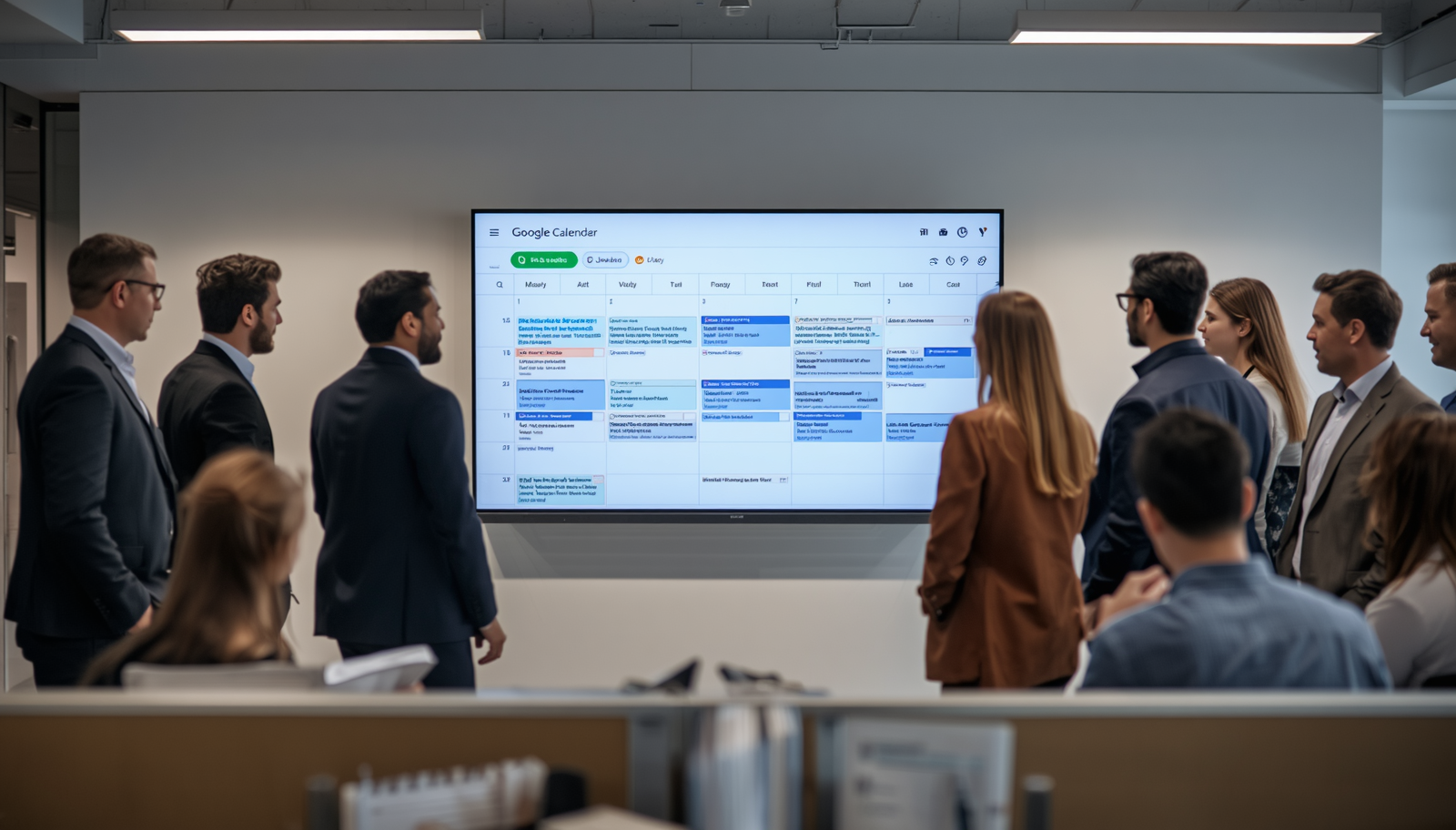
If your team is in Google Workspace, you already have a real-time source of truth for meetings, room bookings, and schedules. The problem is that most people only see it when they open a browser tab. When you display Google Calendar on an office TV screen, you take that same data and make it impossible to miss, without asking anyone to change how they work.
This guide covers why organizations do this, what the setup looks like, which use cases actually deliver value, and what to avoid.
Why Showing Google Calendar on a Screen Is Not Just a Nice-to-Have
Walk into most offices and you will find the same problems. Rooms get double-booked. People stand in hallways checking their phones to see if a meeting moved. Hybrid teams miss sessions because the standup time changed and nobody thought to ping everyone. The calendar information exists. It is just invisible to anyone not sitting at their desk.
Putting a live calendar view on shared screens changes the information layer of your office. Schedules become ambient. Nobody has to ask. The screen handles it.
From an IT and operations standpoint, this matters for three reasons:
- It reduces the volume of "when is the meeting?" messages, which have a real cost in interruptions
- It surfaces room availability at a glance, cutting conflict resolution time
- It requires no additional behavior change from end users. They keep booking in Google Calendar the way they already do
That last point is worth pausing on. The best office tools are the ones that work off existing workflows, not ones that ask people to use a new system.
What IT Managers Should Know Before Setting This Up
Displaying Google Calendar on a TV screen is not technically complex, but how you implement it determines whether it runs reliably or becomes a maintenance headache.
There are three common approaches:
1. Browser-based casting
Some teams use Chromecast or a browser tab pushed to a display. It works, barely. Sessions time out. Authentication lapses. The display freezes on a stale view. This approach is fine for a proof of concept, not for a conference room that a hundred people walk past every week.
2. Dedicated hardware with a signage player
A small device, such as an Amazon Fire Stick, a mini PC, or a purpose-built media player, connects to the TV and runs signage software that pulls the calendar feed. This is more stable, but the quality depends heavily on the software layer.
3. Cloud-managed digital signage platform
A platform like RocketScreens connects directly to your Google Workspace environment, authenticates once, and keeps the calendar view live and updated. You manage every screen from a central dashboard. No manual refresh. No re-authentication loops. If a meeting gets rescheduled at 9:48 AM, the screen reflects it within seconds.
For anything beyond a single-room pilot, the cloud-managed route is the right one. The operational overhead of maintaining individual browser sessions at scale is not worth the short-term cost saving.
How to Display Google Calendar on a TV Screen Using RocketScreens
The setup process is straightforward. Here is what it looks like in practice:
- Connect your Google Workspace account: RocketScreens authenticates with your Google account using OAuth. No calendar data is stored or modified. Read access only.
- Select which calendars to display: You can pull in individual calendars, shared resource calendars (like meeting rooms), or department calendars. You choose what each screen shows.
- Set your layout: Choose a daily agenda view, a weekly overview, or a room-specific format showing what is booked now and what is coming next. Layouts can include your brand colors and logo.
- Assign to screens: Push the calendar view to one screen or a hundred, organized by floor, building, or team. Changes to the layout or content update across all assigned screens from one place.
- Set your display rules: Calendar displays can be scheduled to show only during working hours, or combined with other content in a rotation alongside KPI dashboards, announcements, or company metrics.
One thing worth noting for IT admins managing Google Workspace: you control which calendars are shared with the signage integration at the Google Workspace admin level. You do not need to grant blanket access to all organizational data.
Real Use Cases Worth Paying Attention To
The room availability display is the most obvious application. But there are several others that deliver distinct operational value.
Meeting room entrance displays
A small screen outside each room shows who has it booked, for how long, and when it becomes free. This alone eliminates most booking conflicts. People walking in can see at a glance whether the room is taken. No app. No QR code. No hunting for a booking terminal.
Lobby and reception scheduling
In offices that receive clients or candidates, a lobby display showing today's meeting schedule tells visitors where to go and signals that the organization runs a well-coordinated operation. It also takes load off reception staff.
Team standup and sprint ceremony visibility
At one of our clients, the moment they put their sprint ceremonies on a wall screen, they stopped wasting 10 minutes at the start of every day just aligning on who was supposed to be where and whether the standup had moved. The screen was the source of truth. Nobody argued with it.
Hybrid team alignment
For teams split between remote and in-office, a shared calendar display in the physical office serves as a synchronization layer. When the remote team updates a session, the office screen reflects it without requiring anyone to announce it on Slack.
Executive and leadership schedules
Some organizations display leadership availability, selectively and with appropriate permissions, so that executive assistants and department heads can coordinate without back-and-forth. This works especially well in organizations where senior leaders move between offices or sites.
Combining Google Calendar with Other Data on Your Office Screens
A calendar display becomes significantly more useful when it lives alongside other live data rather than in isolation. Most digital signage platforms let you build a rotation or split-screen layout that combines multiple sources.
Common combinations that work well in practice:
- Calendar + KPI dashboard: Show the day's meetings alongside key business metrics. Sales teams, support teams, and ops teams all benefit from having both visible. KPI dashboards for office TV screens already cover this in depth if you want to go further on the metrics side.
- Calendar + Salesforce pipeline: In sales-heavy offices, the calendar view sits next to a live deal board or activity summary. Reps can see their meetings and their numbers without switching contexts. Customizing Salesforce TV displays covers how to structure these.
- Calendar + Google Data Studio / Looker reports: For ops and finance teams, a Google Data Studio and Looker TV integration means your BI output lives next to the schedule driving the week's work.
- Calendar + Google Slides announcements: Use a playlist that rotates between the calendar view and Google Workspace content like slides and spreadsheet dashboards. Useful for all-hands screens or break room displays.
The key principle here: a screen that shows one thing is a utility. A screen that shows the right combination of things becomes infrastructure.
In my experience working with B2B tech teams through Digital Covet, the biggest problem is rarely a lack of tools. It is that teams never see the data unless it is in their face on a shared screen. Combining calendar with live metrics is the fastest way to close that gap.
Common Mistakes to Avoid
This is a simple integration, but there are a few failure modes that show up repeatedly.
Showing too much data on one screen
A calendar display that shows 12 rooms simultaneously at 10-point font serves nobody. Keep it focused. One screen per room, or a filtered view showing only what is relevant to the people standing in front of it.
Using personal calendars instead of resource calendars
Personal calendars change. People leave. Resource calendars, created at the Workspace admin level for each room or asset, are the stable and correct source for room booking displays. Use those.
Not setting a fallback display state
What does the screen show when there are no meetings for the next three hours? A blank calendar with nothing on it looks broken. Configure a fallback: a company message, a KPI, or anything that confirms the screen is working and still delivering value.
Running authentication as a personal account
If you authenticate the signage integration using someone's personal Google account and that person leaves the company, every screen relying on that auth breaks simultaneously. Use a service account or a shared admin credential managed at the IT level.
Skipping centralized management for multi-location setups
Managing screens individually, with one login per location and one config update at a time, does not scale. If you are deploying across more than one office, use a platform that lets you manage all screens from a single dashboard. RocketScreens handles this across locations without requiring local IT resources at each site.
What Good Looks Like: Characteristics of a Well-Deployed Calendar Display
If you are evaluating whether your current or planned setup is solid, check for these:
- The display updates within 60 seconds of a calendar change in Google Workspace
- Screens do not require manual refresh or re-authentication on a regular basis
- Layout is readable at typical hallway viewing distance, roughly 8 to 12 feet
- IT can update display content without physical access to the screen
- Authentication is managed via a service or admin account, not a personal credential
- The integration connects to 100+ apps and data sources, so you can expand beyond calendar without re-platforming
If you can check all of those boxes, the deployment is solid. If two or three are missing, they will surface as support tickets within a quarter.
Frequently Asked Questions
Does displaying Google Calendar on a TV screen require IT admin access to Google Workspace?
Not necessarily for a basic setup, but for production deployments it is the right approach. Using a Google Workspace admin account or a dedicated service account ensures authentication is stable, not tied to a specific employee, and can be controlled from the Workspace admin console. For shared resource calendars, admin access is typically required to create and share them properly.
Can I show multiple room calendars on a single screen?
Yes. Most digital signage platforms including RocketScreens let you select multiple calendars and display them in a combined view. The format, whether a per-room list, a grid, or a timeline, depends on the layout template. For large offices with many rooms, a filtered view showing only rooms on a specific floor tends to be more usable than displaying everything at once.
What happens if the internet connection drops? Does the screen go blank?
This depends on the platform. Cloud-based signage platforms typically cache a recent version of the content locally, so the screen continues showing the last known calendar state rather than going blank. The display will indicate if it is showing cached data rather than a live feed. When connectivity is restored, it syncs automatically.
Can I combine the Google Calendar display with other content like announcements or metrics?
Yes, and this is often the better approach. Most deployments use a playlist or split-screen layout that rotates between the calendar view and other live data: KPI dashboards, Salesforce reports, company announcements, or Google Workspace slides. You control the timing and sequencing from the central dashboard.
Is Google Calendar data secure when connected to a digital signage platform?
Any reputable platform uses OAuth-based read-only access. The signage software can read calendar data but cannot create, modify, or delete events. The connection respects the same permission structure you have set up in Google Workspace. You control which calendars are shared and can revoke access at any time from your Google Workspace admin console without touching the signage platform itself.
Ready to Put Your Google Calendar on Every Screen That Matters?
Most organizations already have the data they need to run better-coordinated meetings. The gap is visibility. When your Google Calendar is live on the screens your team walks past every day, scheduling friction drops and operational clarity improves, without changing how anyone books a meeting.
RocketScreens connects to Google Workspace and your other critical business tools so your screens show what actually matters, updated in real time, managed from one place.
Book a demo to see how your office screens can display live calendar data alongside your other key systems. No long implementation, no IT overhead.