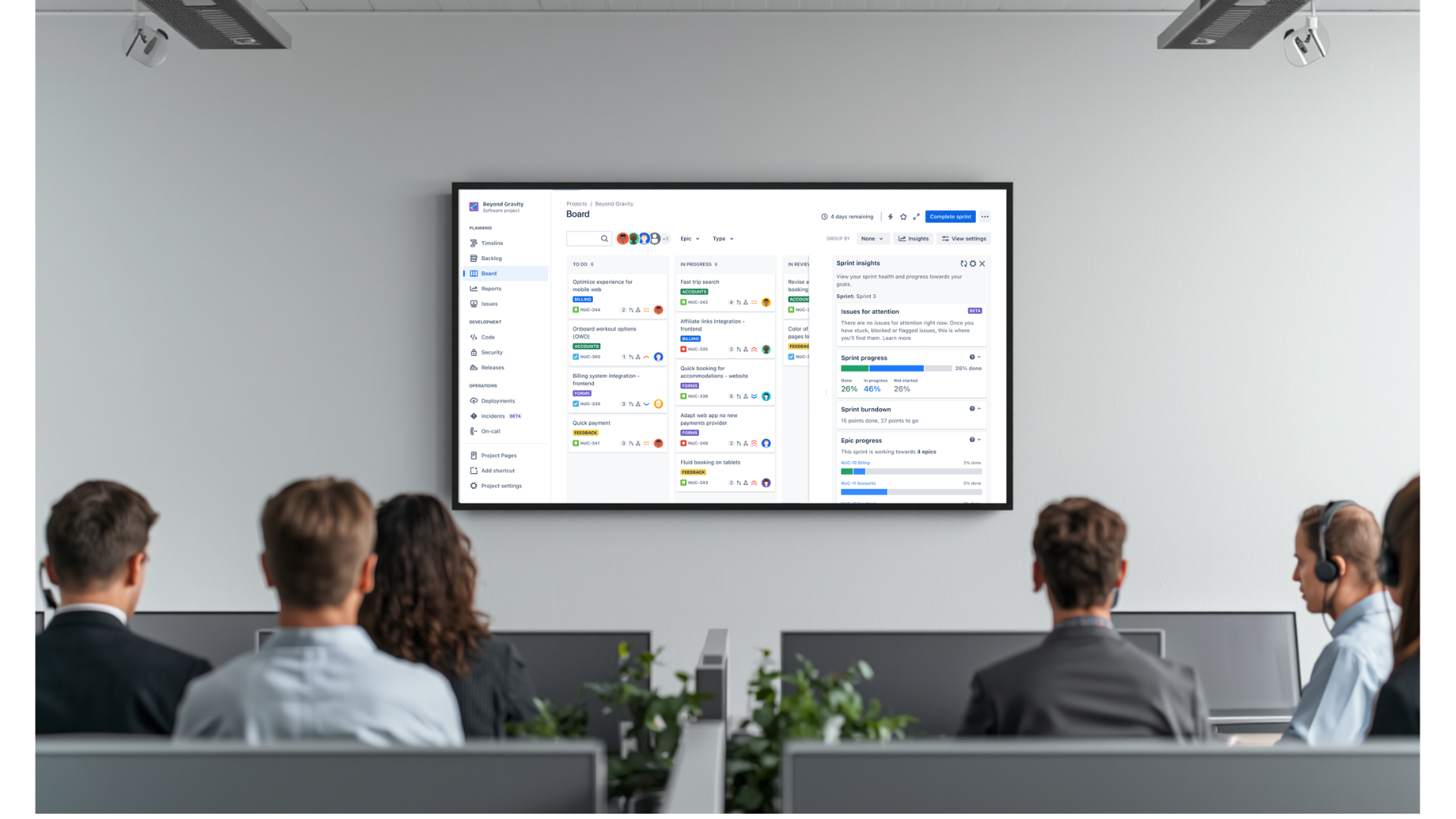
If your team tracks work in Jira but only checks it when someone asks, you have a visibility gap. Displaying Jira issues on TV screens puts sprint boards, blockers, and ticket status in front of the team all day, without anyone needing to open a browser. For agile teams running sprints, managing bugs, or handling support queues, that shared visibility changes how quickly problems get noticed and resolved.
Why Agile Teams Struggle with Jira Visibility
Jira is one of the most widely used project tracking tools in software and IT, but its visibility model is passive. Tickets exist in the system. Updates happen inside the tool. If a team member does not log in, they miss them.
That creates a predictable pattern: standups take longer because people need to catch up, blockers go unspoken because they are buried in ticket comments, and managers have to chase status updates instead of getting them automatically.
The problem is not how Jira works. The problem is that most of the workday happens outside of Jira. People are in IDEs, on calls, or handling emails. Context-switching into a project tracker every hour is unrealistic.
A TV screen solves this with zero behavior change required. The information comes to the team instead of waiting for the team to go find it.
What Happens When You Display Jira Issues on TV Screens
When you put a live Jira board or issue list on a shared screen in your office, a few things shift immediately.
- Standups become faster because the team is already looking at the same live view
- Blockers become harder to miss because they are visible in the room, not buried in a ticket thread
- Ownership becomes clearer because names and statuses are visible to everyone
- Managers get passive visibility into delivery health without interrupting engineers for updates
The psychological effect matters too. When work is visible, people feel more accountable and more supported. A stalled ticket on a wall screen prompts a quick conversation. The same ticket sitting unnoticed in a backlog can delay a sprint for days.
Which Teams Benefit Most
Displaying Jira issues on a TV screen is useful across multiple team types, not just engineering.
Engineering and Development Teams
Sprint boards with active issues, story statuses, and bug counts are the core use case. Engineers can see what is in progress, what is blocked, and what is about to breach a deadline without breaking concentration to check Jira manually.
IT Operations Teams
Operations teams managing incidents, change requests, or infrastructure tasks benefit from real-time visibility into open items. A live screen showing ticket priority and assignment keeps everyone on the same page during high-pressure periods.
Customer Support Teams
Support teams using Jira to track open cases or escalations can display queue status, ticket age, and SLA timers on a shared screen. That keeps the team focused on what needs attention and reduces the risk of tickets aging unnoticed.
Project Managers and Team Leads
Leaders monitoring sprint health or delivery milestones can get a passive view of progress without repeatedly asking for status. A dashboard visible in the office communicates current state at a glance.
How to Display Jira Issues on TV Screens: Implementation Steps
Setting up a Jira TV display does not require complex infrastructure. Here is a practical sequence that works for most teams.
Step 1: Decide What to Display
Start by choosing which Jira data matters most for your team's shared screen. Options typically include:
- Active sprint board with issue status columns
- Filtered issue list by assignee, priority, or label
- Bug or incident queue with severity and age
- Custom JQL-filtered views for specific workflows
Keep the display focused. A screen trying to show everything often communicates nothing. Pick the two or three data points your team references most during the day.
Step 2: Choose a Display Tool
You need a platform that can connect to Jira and output a clean, readable display to a TV or large monitor. Jira itself does not have a native TV broadcast feature. A dedicated digital signage or dashboard tool is required.
RocketScreens connects to Jira and lets you display issues, boards, and filtered views on any screen with real-time updates. You configure what to show, set a refresh interval, and the screen stays current without anyone managing it manually.
Step 3: Set Up the Hardware
A standard office TV with an HDMI input is sufficient for most setups. Options include:
- A dedicated device like a Chromecast, Fire Stick, or Raspberry Pi connected to the TV
- A small form-factor PC or mini computer running the display software
- A browser-based player on any connected screen
For teams with multiple locations or multiple screens, a cloud-based platform like RocketScreens lets you manage all displays from one place, pushing content updates without visiting each screen physically.
Step 4: Configure Jira Authentication
Your display tool will need read access to your Jira instance. This typically uses an API token or OAuth connection. Set this up with a service account rather than a personal account so the connection does not break when someone changes their password or leaves the team.
Step 5: Design the Layout
A good Jira TV display prioritizes readability over data density. Keep font sizes large enough to read from across the room. Use color coding for issue status or priority where possible. Limit the number of columns visible at once.
If you are running a sprint board, the three-column view (To Do, In Progress, Done) works well on most screen sizes. For issue lists, five to eight rows with clear status indicators are usually enough.
Step 6: Set a Refresh Interval
Jira data changes throughout the day as issues are updated, moved, or commented on. Set your refresh interval based on how dynamic your workflow is. For active sprint days, a one to five minute refresh keeps the display current. For lower-velocity queues, a longer interval is fine.
Common Challenges and How to Handle Them
Too Much Data on Screen
Teams often start by trying to show everything: all sprints, all assignees, all statuses. The result is unreadable. The fix is a tighter filter. Use a JQL query to scope the display to only what matters for the team in the room.
Stale Displays
If the display stops refreshing, the team loses trust in it quickly. Use a platform with reliable connectivity and automatic retry logic. RocketScreens handles this at the infrastructure level so displays stay live even when network conditions fluctuate.
Authentication Expiry
API tokens expire. If your Jira connection drops, the screen goes blank or shows an error. Set a reminder to rotate tokens before expiry, or use a platform that manages credential refresh automatically.
Screen Placement
A screen that is hard to see from the team's desks provides little value. Position the TV in sightline of the majority of the team, ideally at the end of a desk row or on a prominent wall near the work area. Larger screens (55 inches or more) work best for rooms with more than six people.
Best Practices for Jira TV Displays
- Use one dedicated screen per team or workflow type rather than combining unrelated data
- Review the display layout at the start of each sprint and adjust filters as priorities shift
- Include a timestamp showing when the data was last refreshed so the team knows the display is live
- Keep the background dark or neutral to reduce eye strain during long viewing periods
- If you use multiple screens in the office, consider a content schedule that cycles between Jira and other data sources during different parts of the day
Mistakes to Avoid
Showing Closed or Resolved Issues Prominently
A screen full of done tickets adds noise without value. Filter your view to active or recent issues and suppress anything closed more than 24 to 48 hours ago.
Displaying Sensitive Information Publicly
If your Jira contains confidential client names, security vulnerabilities, or unreleased product details, be careful about what appears on shared screens in open office areas. Configure your display view with scoped filters that exclude sensitive projects or labels.
Skipping Team Buy-In
A Jira TV display works best when the team understands why it is there and keeps their tickets updated. If issue statuses are not maintained in Jira, the screen shows inaccurate data, which erodes trust faster than having no screen at all. Run a short session when you launch the display to explain what it shows and why ticket hygiene matters.
Using a Generic Dashboard Instead of a Live Feed
Screenshots or static exports of Jira are not the same as a live display. They go stale immediately. Use a tool that queries Jira directly and updates in real time.
How RocketScreens Makes This Work at Scale
For single teams, a basic setup with a TV and a browser-based player can get you started quickly. But for organizations with multiple teams, multiple offices, or strict IT security policies, a purpose-built platform adds meaningful value.
RocketScreens is built for exactly this kind of deployment. It connects directly to Jira, lets you configure exactly which issues or boards to display, and manages the connection reliably in the background. You can run Jira displays on one screen or across dozens of locations from a single management interface.
It also supports scheduling, so a screen in a shared workspace can show Jira during core hours and switch to a different display outside of them. And because it supports over 100 integrations,