Most organizations already have what they need to improve team visibility: SharePoint. The problem is that almost no one opens it. If you want to display SharePoint on TV screens across your office, this guide walks you through exactly how to do it. You will learn what content to show, how to set it up, and how to make it work at scale without heavy IT overhead.
SharePoint Is Full of Information Your Team Never Sees
SharePoint handles a lot of heavy lifting in most Microsoft 365 environments. Communication sites carry company news and leadership updates. Document libraries hold SOPs, policies, and training decks. Lists track incidents, tasks, and open risks. Embedded Power BI reports surface KPIs that should drive daily decisions.
The issue is simple: none of this works if people do not open SharePoint. And in most organizations, they do not open it consistently. Critical updates get missed. Dashboards go unchecked. Decisions happen on stale information because the current picture is buried in a browser tab nobody clicked today.
Turning SharePoint content into always-on TV dashboards solves this. It moves your intranet from a place people occasionally visit into a live layer your teams can see throughout the day without any extra effort on their part.
What SharePoint Actually Does for Your Business
Before mapping content to screens, it helps to be specific about what SharePoint manages in a typical organization:
- Communication sites for internal news, announcements, and leadership updates
- Document libraries holding policies, SOPs, training materials, and exported reports
- Lists tracking tasks, incidents, risks, assets, and project status
- Embedded content such as Power BI reports, videos, and forms surfaced inside SharePoint pages
Many teams treat SharePoint as the source of truth but not as a daily destination. The content is accurate. It just is not visible. That gap between what is stored and what is seen is exactly where TV dashboards make a measurable operational difference.
The Real Problem: Data That Exists But Is Not Visible
The pain points tend to follow a familiar pattern across industries and team types:
- Intranet traffic is low; important announcements get a handful of reads and then disappear
- SharePoint lists and dashboards are only opened during scheduled reviews, not day to day
- Leaders must dig manually into SharePoint to understand what is happening in real time
- Non-desk workers on the shop floor, in support centers, or in warehouses rarely access SharePoint at all
This is a visibility problem, not a content problem. The data is there. The structure is there. What is missing is a reliable way for that information to reach people without requiring them to take a deliberate action.
Ambient TV displays in offices, warehouses, shop floors, and support rooms solve this by design. Information is present. Teams absorb it without effort. Behavior adjusts as a result.
What SharePoint Content Belongs on Office TVs
Not every SharePoint page translates well to a large screen, but the following content types consistently work well in digital signage environments:
- News and announcements including HR updates, CEO messages, policy changes, and event recaps
- Policy and safety documents such as PDFs, training decks, and compliance materials that need regular visibility
- Lists and trackers covering open incidents, support tickets, production status, and task completion rates
- Calendars and schedules for shift changes, holidays, product launches, and training sessions from Office 365 Calendar
- Embedded Power BI reports showing sales pipeline, MRR, support SLA performance, and operational KPIs
The metrics that map most naturally to TV dashboards include pipeline value, win rate, MRR, churn, support ticket volume, SLA breaches, project task completion, and training completion rates. These are numbers teams need to see regularly, not just during weekly reviews.
Traditional Ways to Show SharePoint on a TV (and Where They Break)
Before covering the right approach, it is worth understanding why common DIY methods create more problems than they solve.
PC plus HDMI in kiosk mode means a browser locked to a SharePoint page. It works initially, then fails when the session times out, requires someone to physically restart it, and does not scale beyond one screen.
Smart TV browser is convenient for initial setup but not built for unattended enterprise use. Authentication issues, inconsistent page rendering, and no central management make it unreliable over time.
Basic web-page signage tools load a URL but handle SharePoint superficially. They do not manage session tokens, cannot combine SharePoint with other tools, and offer no scheduling or analytics.
The core issues across all three approaches are consistent:
- Login sessions expire and stop the display with no automatic recovery
- No easy way to schedule, rotate, or combine content from multiple sources
- Scaling to multiple offices or TV screens becomes a manual, fragile process
- No visibility into which screens are active, what is showing, or whether content is current
Reframe the Goal: It Is Not About Casting a Page
The most important shift before setting up SharePoint digital signage is mental. Stop thinking about how to mirror a SharePoint site and start thinking about what your teams need to see all day to work better.
A sales team needs pipeline movement and new meeting data, not a navigation menu. A support team needs open ticket counts and SLA status, not a document library. Operations needs throughput, downtime, and incident-free days.
When visibility of the right metrics is constant, behavior changes in practical ways:
- Sales reps respond faster to pipeline changes they can already see
- Support teams course-correct on ticket backlogs before they breach SLA
- Operations teams spot delays and safety risks as they emerge rather than hours later
- Leadership reduces the number of slide decks required to communicate current status
TV dashboards work because they make information ambient. That is the design goal, not technical screen-casting.
Introducing RocketScreens: The Visibility Layer for SharePoint and Beyond
RocketScreens is a digital signage and data visualization platform that connects to over 100 apps and content sources and broadcasts that content to TVs, desktops, and web players across locations.
In a SharePoint context, it goes well beyond loading a SharePoint URL on a screen. It provides:
- Native integrations with Power BI, Office 365 Calendar, Salesforce, Google Sheets, Confluence, and more, so SharePoint content sits alongside your other live data sources in one rotating channel
- Centralized player management that handles authentication, scheduling, and auto-refresh without someone babysitting a browser
- Multi-location scalability where one person can manage dozens of screens across offices from a single dashboard
This is the difference between showing SharePoint on a TV and making SharePoint content part of a live, managed visibility infrastructure across your organization.
Step-by-Step: How to Display SharePoint on TV with RocketScreens
Step 1: Prepare TV-Ready SharePoint Pages
Before connecting any screen, create a dedicated communication site or section in SharePoint specifically designed for TV display. This keeps signage content clean and separate from standard intranet browsing.
Build one page per screen zone: Sales Floor, Support Room, Production Area. Each page should use large web parts only, such as file viewers, hero web parts, embedded Power BI reports, and key list views. Remove navigation menus and sidebar clutter. Every element on the page should be readable at a glance from several meters away.
Step 2: Set Up TV Hardware and RocketScreens Players
Choose a player type based on your existing hardware and environment:
- Android or Fire TV stick with the RocketScreens app installed, connected via HDMI to any TV
- Desktop PC running the RocketScreens desktop player, connected to a TV or monitor via HDMI
- WebTV or Web Player using a Smart TV browser or any standard browser running a RocketScreens Web Player URL, with no additional hardware required
Register each device as a player in the RocketScreens CMS, name it by location, and assign a default channel. All content management from this point happens centrally.
Step 3: Connect Your Microsoft 365 and Data Sources
Inside RocketScreens, connect the tools that feed your SharePoint environment:
- Power BI to pull in existing SharePoint-embedded dashboards directly
- Office 365 Calendar to surface events already managed through SharePoint sites
- PDF and Document apps to display policies, SOPs, and training materials stored in SharePoint libraries
- Complementary tools such as Salesforce, Google Sheets, and Confluence that sit alongside SharePoint in your stack
Step 4: Build a SharePoint TV Channel in RocketScreens
Create a channel focused on SharePoint content combined with supporting data sources:
- Add SharePoint communication site pages and list views using the Website or Static Website app to load the page URL
- Upload PDFs and PowerPoint exports of critical documents via the PDF app for policies, safety materials, and playbooks
- Add Power BI reports, calendars, and other app content as separate channel items for granular rotation control
Set the rotation order and dwell time for each item. Sales dashboards that update frequently need shorter dwell times than a safety SOP that teams need to read in full. Build the cadence around how your teams actually work on the floor.
Step 5: Schedule and Push Channels to Office TVs
Map channels to screens by function or location. A sales floor channel carries different content than a support room channel or an executive overview channel.
Use scheduling to run operational dashboards and live data during core working hours, and shift to HR updates, culture content, and external news during breaks or low-traffic periods.
RocketScreens handles auto-refresh from every connected source including Power BI reports, web pages, and calendars, so content stays current without manual uploads or any intervention from IT.
Real-World Scenarios: SharePoint on TVs in Practice
Sales Floor Command Center
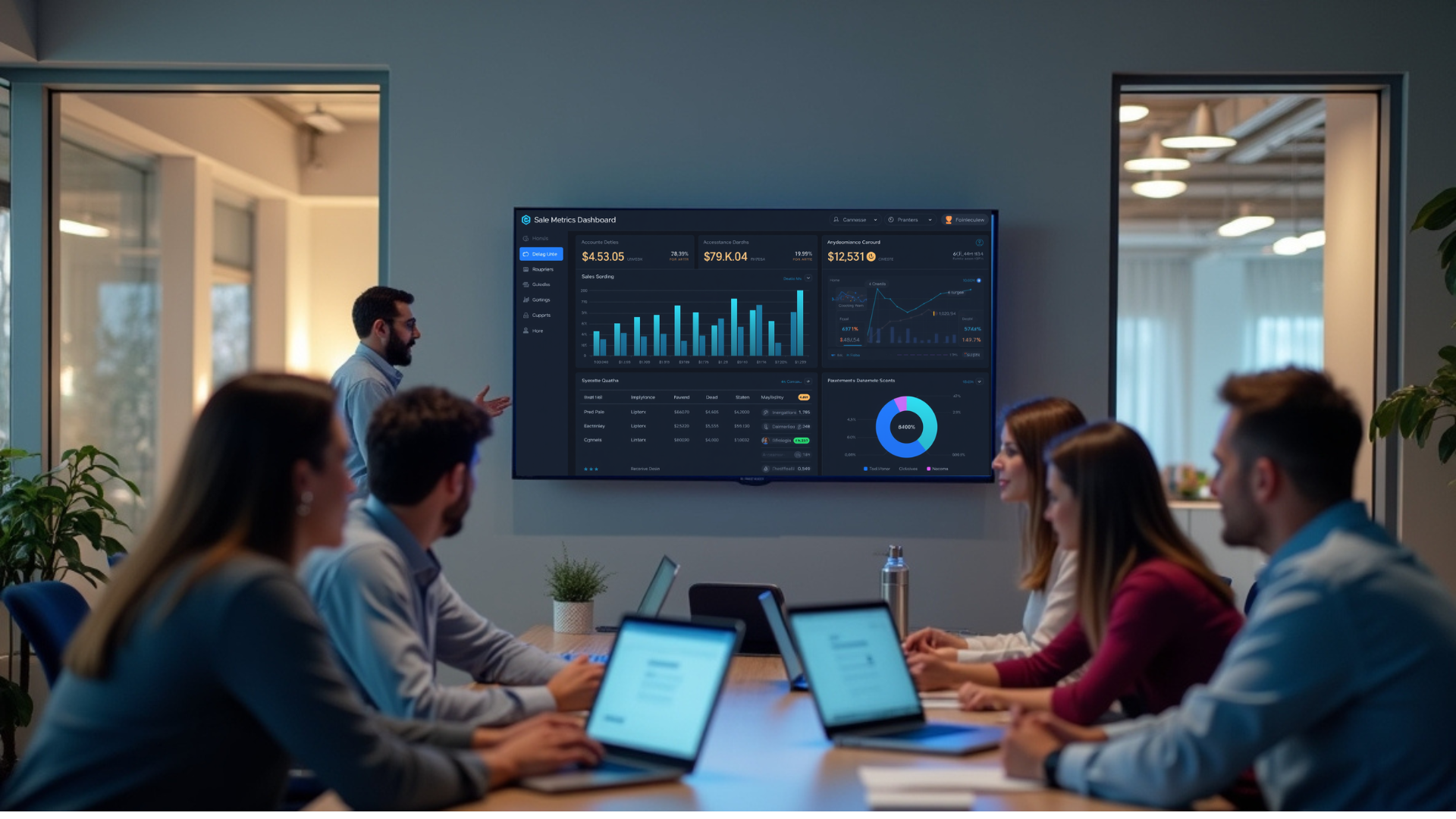
The TV rotates through a SharePoint page showing current campaigns, a Power BI sales dashboard, and a Google Sheets revenue forecast. Metrics visible at all times: pipeline value, win rate, new meetings booked, MRR. Reps know where they stand without opening a single tab or waiting for a weekly report.
Support Situation Room
One screen shows a SharePoint list of open incidents, an embedded ticket dashboard, and the Office 365 on-call calendar. Visible metrics: open tickets, SLA breaches, average response time. The team self-corrects on backlogs because the numbers are always in view.
Operations and Safety Board
Displays rotate through a SharePoint safety bulletin page, a PDF of the daily SOP, and KPIs for throughput and downtime. Metrics: units produced, defect count, incident-free days. Safety compliance and operational performance are ambient facts, not buried in a system that requires login.
HR and Leadership Communication Loop
Content alternates between SharePoint news posts, a town-hall and holiday calendar, and a curated external news feed. Metrics tracked: training completion, event attendance, and engagement initiative participation. Leadership updates reach every employee without depending on email open rates.
How This Changes Business Outcomes
The operational benefits of combining SharePoint digital signage with RocketScreens come down to four consistent shifts:
- Alignment: Every team member sees the same SharePoint-sourced information. There is no version confusion and no outdated spreadsheet in circulation.
- Speed: Constant visibility of changing metrics including pipeline, ticket volume, and production output accelerates the speed at which teams recognize and respond to problems.
- Ownership: Transparent dashboards make individual and team performance visible, which encourages self-correction without managerial intervention.
- Fewer status meetings: When SharePoint content and live dashboards are always visible, many update meetings become redundant because the information is already shared.
Visibility turns SharePoint from a passive document repository into an active part of how the business runs every day.
Common Mistakes to Avoid
- Mirroring the full SharePoint interface: Navigation menus, search bars, and sidebars do not belong on TVs. Build pages specifically designed for screen display.
- Using a single shared login for all screens: This creates authentication risks and single points of failure. Use proper player-level permissions through RocketScreens.
- Showing every KPI on every screen: Tailor channels to the audience. Operations does not need MRR data. Sales does not need incident-free day counts.
- Ignoring dwell time: If content rotates too fast, teams cannot read it. If it rotates too slowly, it becomes background noise. Test and calibrate per screen location.
- Not planning for auto-refresh: Static SharePoint page screenshots or manual uploads defeat the purpose of live dashboards. Use live source connections through RocketScreens so data updates automatically.
Best Practices for SharePoint Digital Signage
- Keep each TV-facing SharePoint page focused on one clear purpose per screen zone
- Use Power BI for live KPI data rather than trying to display raw SharePoint list data directly on a TV
- Schedule content so the most critical operational data appears during peak working hours
- Review channel content monthly to keep it current and remove anything no longer relevant to the team
- Name players clearly by location and function inside RocketScreens so your team can manage at scale without confusion
Frequently Asked Questions
Can I display secure internal SharePoint sites on office TVs?
Yes. As long as the player device or browser session has the correct permissions and is authenticated, internal SharePoint pages can be safely shown on TVs. RocketScreens supports dedicated player authentication so your internal pages stay secure without requiring a manual login each time the display cycles.
Do we need special digital signage TVs or new hardware?
No. Any TV or monitor with an HDMI input or a modern browser can work with RocketScreens, whether through a media stick, desktop PC, or Smart TV browser session. You do not need to replace existing screens to get started.
How often does SharePoint content refresh on the screen?
Refresh frequency depends on the underlying source. Power BI reports and Office 365 Calendar integrations follow their standard refresh schedules. Web-based SharePoint pages loaded via RocketScreens are reloaded automatically on a set interval, so lists and page content stay current without manual uploads.
Can we mix SharePoint content with other tools on the same screen?
Yes. A single RocketScreens channel can rotate through SharePoint pages, Power BI reports, Salesforce dashboards, Google Sheets, calendars, external news feeds, and uploaded PDFs. All of it is managed from one central dashboard, which is one of the core operational advantages of the platform.
What happens if our network goes down?
RocketScreens players cache the most recently loaded content locally, so screens continue displaying the last known content during brief outages rather than going blank. Once connectivity is restored, content refreshes automatically from all connected sources.
Start Making SharePoint Visible Across Your Office
Your SharePoint environment already contains the news, data, and documents your teams need to work more effectively. The missing piece is visibility: getting that content out of hidden browser tabs and onto screens people actually see throughout the working day.
RocketScreens connects with your Microsoft 365 environment and turns your SharePoint pages, lists, and embedded dashboards into live, managed TV experiences your whole team can see, understand, and act on in every office and every location.
Book a demo to see how it works in your environment, or explore the platform to build your first SharePoint TV channel today.