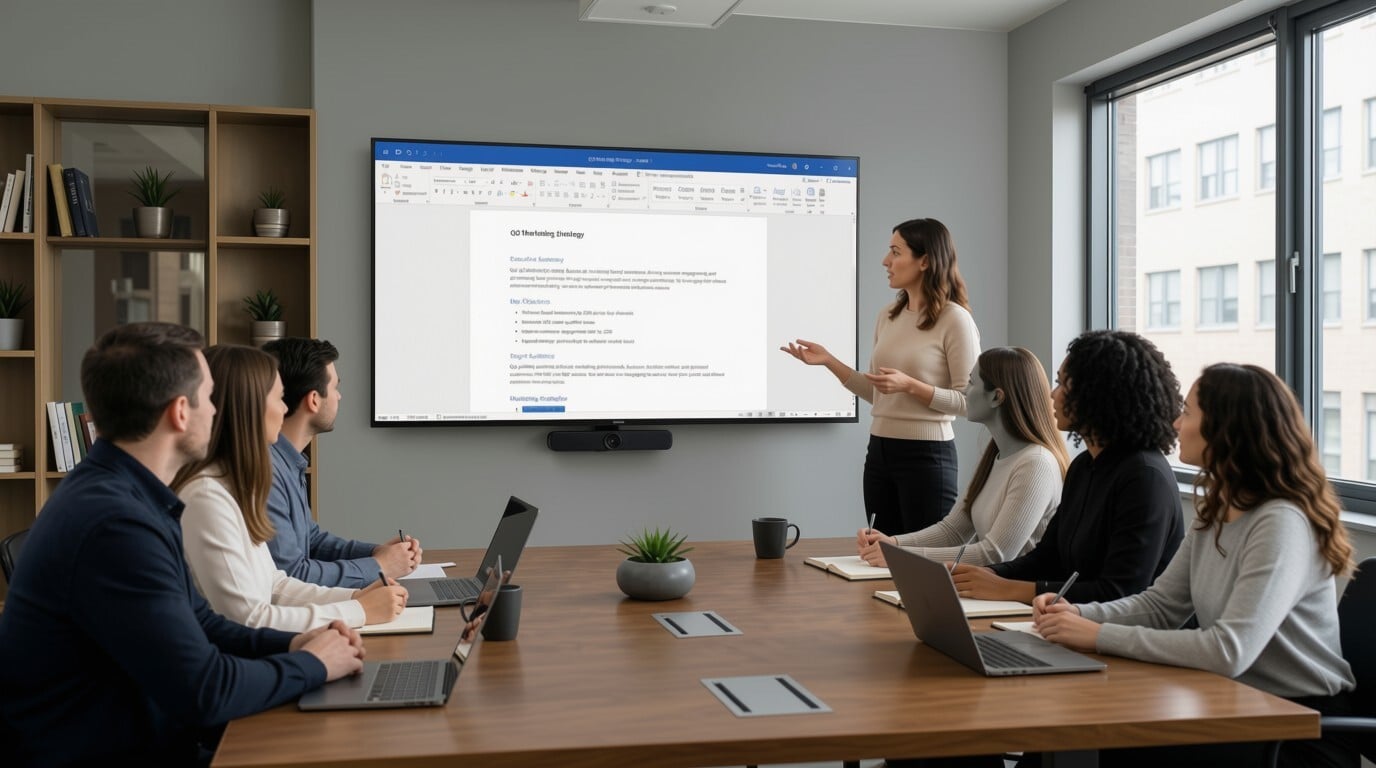
Most companies write their most important information in Microsoft Word. Policies, SOPs, HR announcements, safety rules, and leadership updates all start life as .docx files. The problem is where those files end up: buried in shared drives, attached to emails nobody opens, or parked on intranet pages employees rarely visit. Microsoft Word digital signage solves this by taking the documents you already maintain and displaying them on office TVs where employees actually look. Instead of hoping people find the document, you bring the document to them.
What Is Microsoft Word Digital Signage?
Microsoft Word digital signage is the practice of displaying Word documents, or content sourced from Word files, on TVs and digital displays across your workplace through a signage platform. Rather than converting every document into slides or posters manually, a platform like RocketScreens connects directly to your Microsoft 365 or OneDrive environment and renders selected Word files as clean, readable screen content.
The document remains the single source of truth. When someone updates the file in its original location, the connected screens refresh automatically. There is no re-export, no re-upload, and no risk of an outdated version circulating on a screen in another office.
This turns static internal documents into a live communication channel that runs alongside dashboards, calendars, KPIs, and announcements on the same displays.
Why Internal Communication Fails Without Visible Documents
Internal communication rarely fails because the content is bad. It fails because the content is invisible at the moment it matters. A well-written policy that nobody reads changes nothing. An SOP that lives three folders deep in a shared drive does not influence behavior on the shop floor.
Consider how most employees actually work:
- Frontline staff in warehouses, call centers, retail floors, and clinics often have limited or no access to a computer during their shift.
- Desk-based employees receive dozens of emails a day and skim or skip anything that looks like a policy attachment.
- Hybrid teams miss hallway conversations and posted notices entirely on remote days, then miss screen-based context when they return.
- Updates to existing documents are the most likely content to be missed, because employees assume they already know the current version.
Shared screens address all four situations at once. A TV in a break room, lobby, production floor, or team area is passively visible dozens of times per day. Repetition builds recall, and recall builds compliance and alignment. The document stops being something employees must remember to check and becomes something they cannot avoid seeing.
The Business and Operational Impact of Word Documents on Office Screens
Displaying Word content on TVs is not a cosmetic upgrade. It changes measurable operational outcomes.
Faster Update Cycles
When a policy changes, communications teams traditionally draft an email, update the intranet, print new posters, and brief managers. With Word-based signage, one edit to the source document pushes the change to every connected screen within seconds. The lag between decision and awareness shrinks from days to minutes.
Consistent Messaging Across Locations
Multi-site organizations struggle with version drift. One office works from the 2024 safety guidelines while another follows the 2026 revision. Centralized signage management guarantees that every location displays the same current version, because every screen pulls from the same file.
Reduced Meeting and Email Overhead
A meaningful share of recurring meetings and all-staff emails exist only to make sure people saw something. When routine reminders, policy highlights, and announcements rotate on screens, those touchpoints can be shortened or removed. Managers spend less time repeating information and more time acting on it.
Better Compliance and Audit Readiness
For regulated industries, demonstrating that employees were informed of current policies matters during audits. Persistent on-screen display of compliance content, sourced from controlled documents, supports the argument that information was actively communicated rather than passively filed.
How RocketScreens Displays Microsoft Word Documents on TVs
RocketScreens is a cloud-based digital signage platform with more than 100 integrations, including Microsoft 365, OneDrive, PDFs, and Word documents. The Word workflow is built to remove manual effort:
- Direct document display: Upload a Word file or connect one from cloud storage, and it renders as a readable slide on any connected screen.
- OneDrive and Microsoft 365 integration: Authenticate your account, select a folder, and the platform displays its contents live. Word, Excel, PowerPoint, and image files can all rotate in the same playlist.
- Automatic refresh: When the source document changes, screens update on their own. Nobody has to remember to republish.
- Centralized management: From one dashboard, administrators control which documents appear on which screens, in what order, and on what schedule, across every floor and location.
- Mixed content rotations: Word documents can share a rotation with live dashboards from Salesforce, Power BI, HR systems, and other tools, so employees see both direction and performance on the same screen.
The practical effect is that your existing document ecosystem becomes your signage content library. There is no parallel content production process to maintain.
Implementation: From Word File to Office TV in Six Steps
A typical deployment looks like this:
- Connect Microsoft 365 or OneDrive. Authenticate your account inside RocketScreens and link the folders where your key internal documents live.
- Create channels and playlists. Build rotations such as HR Updates, Operations Screens, or Sales Floor, and assign specific Word documents and other apps to each channel.
- Design documents for the screen. Reformat display-bound Word files with large fonts, bold headings, short bullet lists, and minimal paragraphs so they scan well from a distance.
- Place screens by audience. HR content belongs in break rooms, safety documents on production floors, sales priorities near sales pods, and general announcements in lobbies and reception areas.
- Schedule and automate. Rotate content through the day, for example morning announcements, midday training snippets, and afternoon KPIs, so screens stay fresh without manual intervention.
- Measure and refine. Track outcomes such as fewer repeated questions, better policy awareness, and reduced violations, then adjust which documents earn a place in the rotation.
Industry Use Cases for Word-Based Signage
HR and People Operations
Policy summaries, benefits announcements, onboarding checklists, holiday calendars, code-of-conduct highlights, and internal job postings. A rotating Policy of the Week slide in break rooms consistently outperforms posters and email for awareness.
Operations and Compliance
SOP excerpts, safety rules, audit preparation checklists, quality standards, and incident response steps displayed exactly where the work happens. In healthcare and manufacturing, this places controlled-document content in front of staff who never sit at a desk.
Sales and Marketing
Campaign briefs, weekly priorities, messaging guidelines, and battlecard summaries. Pairing a Word-based campaign brief with a live Salesforce pipeline dashboard on the same screen gives sales teams both the plan and the scoreboard.
IT and Administration
Scheduled maintenance notices, security reminders, password policy updates, and device usage guidelines. Security teams in particular benefit from persistent, low-effort visibility for awareness content.
Leadership Communication
CEO letters, quarterly themes, mission statements, and focus-of-the-month one-pagers. Leadership messages gain weight when they are visibly present in the workplace rather than confined to an email thread.
Common Challenges and How to Handle Them
Documents designed for print, not screens. A dense two-page memo is unreadable on a TV. The fix is a display version discipline: key documents get a screen-friendly summary page maintained in the same folder.
Content that goes stale. Screens showing last quarter's priorities damage credibility. Assign clear ownership per channel and use scheduling so time-bound content expires automatically.
Sensitive information on public screens. Not every Word document belongs in a lobby. Use channel-level control so confidential material only appears on screens in appropriate areas, and keep restricted folders out of the signage connection entirely.
Screen fatigue. If every slide looks the same, employees tune out. Vary the rotation by mixing documents with dashboards, calendars, recognition slides, and visual content so the screen stays worth glancing at.
Best Practices for Word Documents on Digital Signage
- Keep each displayed page to one idea, one heading, and no more than five bullet points.
- Use a minimum effective font size that is readable from the farthest realistic viewing distance in the room.
- Set dwell times long enough to read the slide fully, typically 15 to 30 seconds for text content.
- Match content to location: safety content where work is physical, sales content where sellers sit, culture content in common areas.
- Pair direction with data by rotating Word content alongside live KPI dashboards so employees see what to do and how the team is performing.
- Review rotations monthly and remove anything that no longer earns its screen time.
Mistakes to Avoid
- Displaying full-length documents instead of screen-optimized summaries.
- Treating signage as a set-and-forget project with no content owner.
- Overloading rotations with too many slides, which reduces the frequency of each message.
- Ignoring frontline placement and concentrating screens only in head-office areas.
- Running signage as a separate content silo instead of connecting it to the document storage teams already use.
Frequently Asked Questions
Can I display a Word document on a TV without converting it to another format?
Yes. A signage platform like RocketScreens renders Word files directly as screen content. You can upload the file or connect it through OneDrive and Microsoft 365, and the platform handles display formatting without manual conversion.
What happens when someone edits the Word document?
With a connected cloud storage integration, screens refresh automatically when the source file changes. The version on the screen always matches the version in the folder, which removes outdated content from circulation.
Do employees need any software or accounts to see the content?
No. Content displays on standard TVs and digital displays connected to the signage platform. Viewing requires nothing from employees, which is exactly why it works for frontline teams without regular computer access.
Can Word documents share a screen rotation with live dashboards?
Yes. RocketScreens supports more than 100 integrations, so a single rotation can include Word policies, Power BI or Salesforce dashboards, calendars, and announcements. Many organizations pair instructional content with performance data on the same screen.
Is this suitable for multi-location businesses?
Centralized cloud management is one of the strongest reasons to adopt it. One administrator can control every screen across all sites from a single dashboard, ensuring consistent, current messaging everywhere.
Turn Your Documents Into a Communication Channel
The documents your organization depends on already exist. The gap is visibility. RocketScreens connects Microsoft Word, OneDrive, Power BI, Salesforce, and 100+ other tools to your office screens, so policies, priorities, and performance data stay in front of every team, on every floor, in every location.
Book a demo with RocketScreens to see how your existing Word documents can become live, always-current content on your office TVs, or explore the platform to map your first screen rotation today.