A Google Calendar wall display gives teams a simple way to keep schedules visible throughout the workday. Instead of relying on individual apps, notifications, or inbox reminders, meetings and events are always visible on a shared screen. This improves coordination, reduces missed appointments, and creates a more transparent workplace environment.
What Is a Google Calendar Wall Display
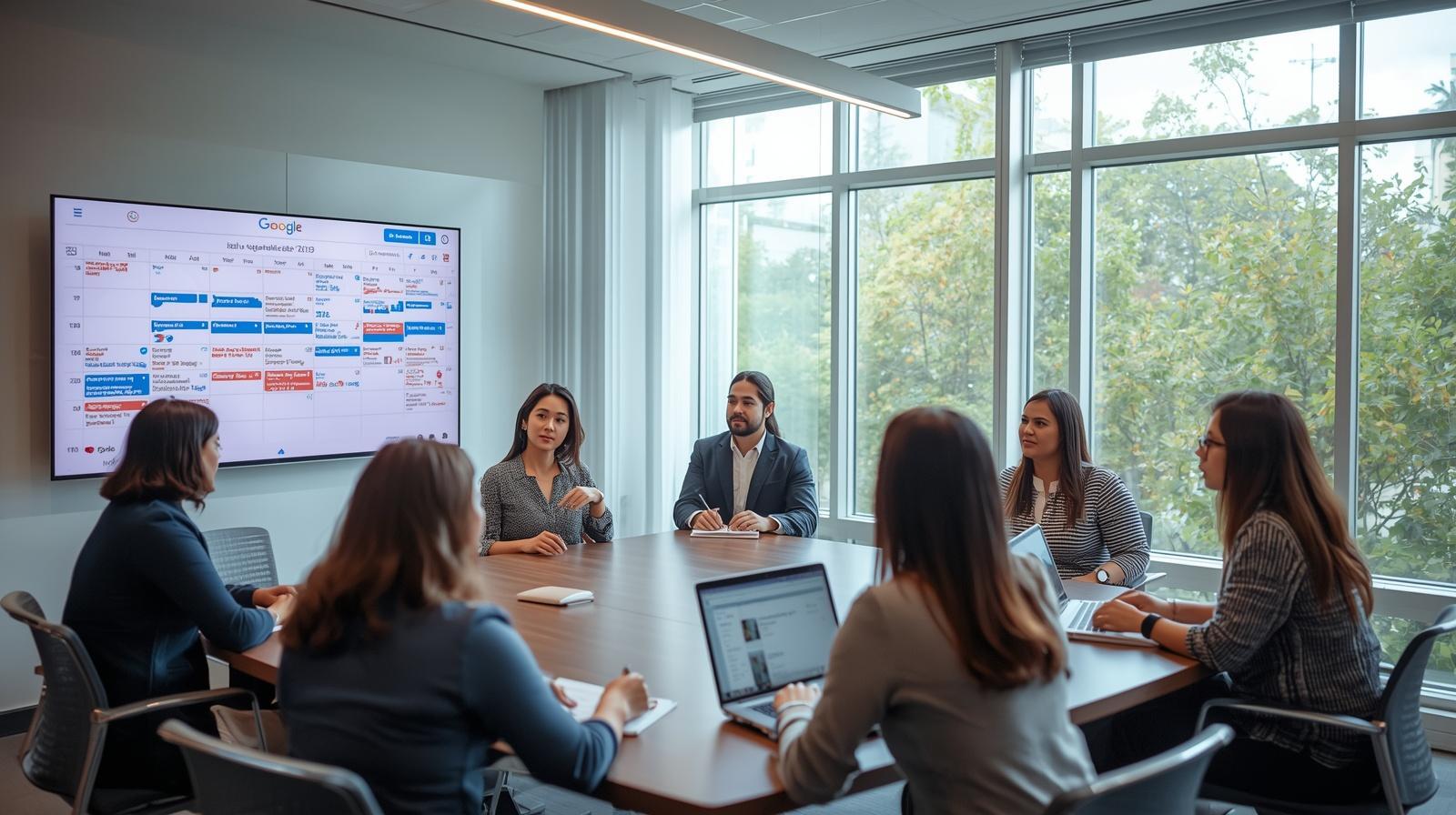
A Google Calendar wall display is a digital screen, usually a TV or monitor - that shows live calendar data from one or multiple Google Calendars. It continuously syncs updates, so any change made in the calendar is reflected on the screen in real time.
These displays are commonly placed in:
- Conference rooms
- Office hallways
- Reception areas
- Open workspaces
- Remote team hubs
The goal is straightforward: make scheduling information visible without requiring employees to open a device.
Why Google Calendar Wall Display Matters for Organizations
Scheduling inefficiencies often go unnoticed. Missed meetings, double bookings, and lack of visibility can quietly impact productivity. A shared display solves this by integrating schedules into the physical workspace.
Key benefits include:
- Improved visibility: Everyone can see what’s happening next
- Fewer missed meetings: Visual reminders reduce reliance on notifications
- Better coordination: Teams stay aligned without constant communication
- Reduced confusion: Room availability is clear at a glance
For operations leaders, this translates into smoother workflows and fewer disruptions.
How Google Calendar Digital Signage Works
The setup is simple and requires three main components:
- A display screen (TV or monitor)
- A device to run the signage (media player or browser-based system)
- A digital signage platform connected to Google Calendar
Once connected, the system pulls calendar data and renders it in a visual format optimized for large screens. Modern platforms like RocketScreens use a secure cloud-based architecture, allowing centralized control across multiple screens. This means IT teams can manage displays in different locations from a single dashboard.
Step-by-Step Setup for a Google Calendar Wall Display
Setting up a Google Calendar wall display does not require complex infrastructure. Most organizations can complete the process in minutes.
1. Choose the Right Screen
Select a screen that is:
- Large enough to be readable from a distance
- Positioned in a high-traffic area
- Mounted at eye level
Common choices include 32"–55" displays for offices and larger screens for shared spaces.
2. Connect a Signage Platform
Use a platform that supports Google Calendar integration. This enables automatic syncing and eliminates manual updates.
With RocketScreens, integration is designed to be quick, allowing teams to connect calendars and deploy content across screens without technical overhead.
3. Select a Calendar View
Choose how information is displayed:
- Day view for detailed schedules
- Week view for planning ahead
- Agenda view for upcoming events
The right view depends on where the screen is placed and how quickly users need to interpret information.
4. Mount and Activate the Display
Install the screen in the chosen location and ensure it auto-refreshes. Most systems update in real time, so no manual intervention is required after setup.
What to Display on a Google Calendar Wall Screen
A basic setup includes meetings and events, but organizations often expand beyond that.
Common display elements include:
- Upcoming meetings
- All-day events
- Room bookings
- Team schedules
- Time zones for distributed teams
To increase value, many companies combine calendar data with:
- Live clocks
- Weather updates
- Internal announcements
- Performance dashboards
RocketScreens supports over 100 integrations, allowing teams to display multiple data sources on a single screen without switching tools.
Business Impact of Google Calendar Wall Displays
The impact of a Google Calendar wall display extends beyond convenience. It directly affects how teams operate.
Operational Efficiency
When schedules are visible, teams spend less time checking calendars and more time executing tasks. This reduces interruptions and improves workflow continuity.
Meeting Discipline
Visible schedules create accountability. Teams are more likely to start and end meetings on time when the next booking is clearly displayed.
Space Utilization
Conference rooms are used more efficiently when availability is visible. This reduces conflicts and idle space.
Cross-Team Awareness
Departments gain visibility into each other’s schedules, improving collaboration and reducing silos.
Use Cases Across Industries
Google Calendar wall displays are used across a wide range of industries, each with specific needs.
Corporate Offices
Displays help manage meeting rooms and keep teams aligned on daily schedules.
Healthcare Facilities
Used for staff scheduling, patient appointments, and shift coordination.
Education
Schools and universities use displays for class schedules, events, and faculty meetings.
Manufacturing
Displays show shift schedules, maintenance windows, and operational timelines.
Remote and Hybrid Teams
Shared screens in offices help bridge the gap between in-office and remote employees by making schedules visible to everyone.
Common Challenges and How to Solve Them
While setup is simple, organizations may encounter a few challenges.
Visibility Issues
If screens are too small or poorly placed, information becomes difficult to read.
Solution: Use larger screens and position them strategically.
Information Overload
Displaying too much data can reduce clarity.
Solution: Focus on essential information and use clean layouts.
Manual Updates
Without proper integration, updates may require manual input.
Solution: Use platforms with automatic syncing like RocketScreens.
Scalability Limitations
Managing multiple screens can become complex.
Solution: Use centralized screen management to control all displays from one interface.
Best Practices for Effective Google Calendar Wall Displays
To get the most value, follow these best practices:
- Keep layouts simple and readable
- Use high-contrast color schemes
- Limit the number of calendars displayed at once
- Place screens where people naturally look
- Regularly review and optimize display content
Consistency is key. A well-maintained display becomes a trusted source of information.
Mistakes to Avoid
Some common mistakes reduce the effectiveness of digital signage.
- Overloading screens with too much information
- Using small or low-resolution displays
- Ignoring placement and visibility
- Failing to integrate with live data sources
- Not updating display formats based on user feedback
A focused approach delivers better results than a feature-heavy setup.
Why RocketScreens Is a Practical Choice
RocketScreens simplifies the process of deploying a Google Calendar wall display across organizations.
Key advantages include:
- Quick setup with minimal technical requirements
- Secure cloud-based infrastructure for reliable performance
- Centralized control for managing multiple screens
- Real-time syncing with Google Calendar
- Support for 100+ integrations
For IT teams, this reduces maintenance overhead. For operations teams, it ensures consistent visibility across locations.
Frequently Asked Questions
How do I display Google Calendar on a TV screen?
You can connect your Google Calendar to a digital signage platform and display it on a TV using a media player or browser-based system.
Does a Google Calendar wall display update automatically?
Yes. When connected through a signage platform, updates sync in real time without manual intervention.
What size screen is best for office use?
Most offices use screens between 32 and 55 inches, depending on viewing distance and space.
Can I show multiple calendars on one screen?
Yes. Many platforms allow multiple calendars to be displayed simultaneously, making it easier to manage team schedules.
Is it secure to display company calendars on a public screen?
Yes, as long as you use a secure platform with proper access controls and permissions.
Get Started with a Smarter Scheduling Display
A Google Calendar wall display turns scheduling into a shared, visible experience. It reduces friction, improves coordination, and supports better use of time and space.
If your organisation is managing multiple teams, locations, or meeting rooms, a centralised display system becomes even more valuable.
Explore how RocketScreens can help you deploy and manage calendar displays across your workplace. Book a demo or start a consultation to see how it fits into your operations.